Version control - using Git with RStudio
A few words about Git and GitHub
Version control is a concept originating from software development, where it helps developers and development teams to manage changes to source code over time. Nowadays it becomes more and more popular in almost all research areas that deal with a lot of data and use/develop tools for working with data. For any researcher version control can be a way to save their work and keep track of changes in data, scripts, notes, documentation.
One of the most used version control software is Git, and one of the most popular services for hosting Git repositories is GitHub.com. RStudio has functionality for working with Git and GitHub, and that’s the subject of this session.
Git and GitHub integration in RStudio
Hands-on session
Requirements
You need to have Git installed on your local computer, and a GitHub account registered in order to do the examples below.
Getting started
First you need to make sure that the version control integration is enabled in RStudio, and that it knows the right path to Git.
- Go to Preferences (or Tools > Global Options), and select Git/SVN from the categories in the left-hand side menu. A window like the following one will show up:

- Make sure the box “Enable version control interface for RStudio projects” is checked
- Make sure you have the correct path in the “Git executable” field.
On Linux and Mac OS you can type which git in terminal to get the path; on Windows you can try dir /s git.exe or which git.exe or where git.exe (if none of those give you the right answer, look at this post on stackoverflow.com)
- Set up your SSH RSA key
- If the field “SSH RSA Key:” is empty, you first need to create the key. Do this by clicking the “Create RSA Key…” button. A window like this will pop up:

If you enter a passphrase here, you will be asked for it each time you try to authenticate to GitHub with this key. Skipping the password will not compromise the security as long as you keep your private key safe. In either case clicking the “Create” button will create your SSH key pair. - To see and copy your Public key you need to click on “View public key”. It will show up in a window where it can be copied and imported in your GitHub account:

Hint
Follow these instructions for importing oyur SSH key to Github - https://help.github.com/articles/adding-a-new-ssh-key-to-your-github-account/
Hint
Look at this discussion for more information about the use of passphrase for SSH RSA keys, and other some general security considerations
Once we have RStudio integrated properly with Git and a SSH key exported to GitHub we can contiue with a couple of different scenarios.
Adding version control to an existing project
In the first part of this workshop we created a new project from scratch, in a clean new directory. We didn’t check the option “Create a Git repository”, therefore this project is not tracked by Git and if you navigate to the directory in some CLI and if you type git status you will get an output like this one: fatal: Not a git repository (or any of the parent directories): .git.
You can make your project a Git repository in (at least) two ways. The traditional way will be to just navigate into the directory and type git init. After restarting RStudio it will sense the Git repository.
The same can be achieved directly from RStudio:
- Open the project you created in “Creating a project in a new directory in RStudio” section of the first part.
- Select “Project Options” from the “Project menu”.
The following window will appear:

- Select Git/SVN from the categories in the left-hand side and you will see a “Version control system” drop-down menu:

- When you select “Git”, RStudio will ask you to confirm:

and then it will prompt you for a restart in order for these changes to take effect:
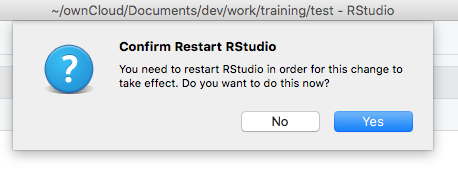
- After the restart you can find a new “Git menu” in the main menu bar of RStudio:

This menu gives you the basic Git functionality - commit, pull, push, and see the project content history.
In the “Files” pane of RStudio you will see that a .gitignore file is added:

It is pre-populated with some common R files that you probably don’t want to keep track of. You can easily edit .gitignore inside RStudio by clicking and opening it.
Creating a new project with Git repository
This is simply done by doing the steps from Creating a project in a new directory in RStudio, plus checking the option “Create a Git repository”. You can, for the exercise sake, create one such project and get a feeling how it works.
Creating a project by checking out a GitHub repository
In this scenario we have a link to a GitHub repository containing some data we want to analyse. We can checkout the repository and create a RStudio project “simultaniously” using the following steps:
- Click the “File” menu button, then “New Project” and select the option “Version Control”.
You will get to the following window:
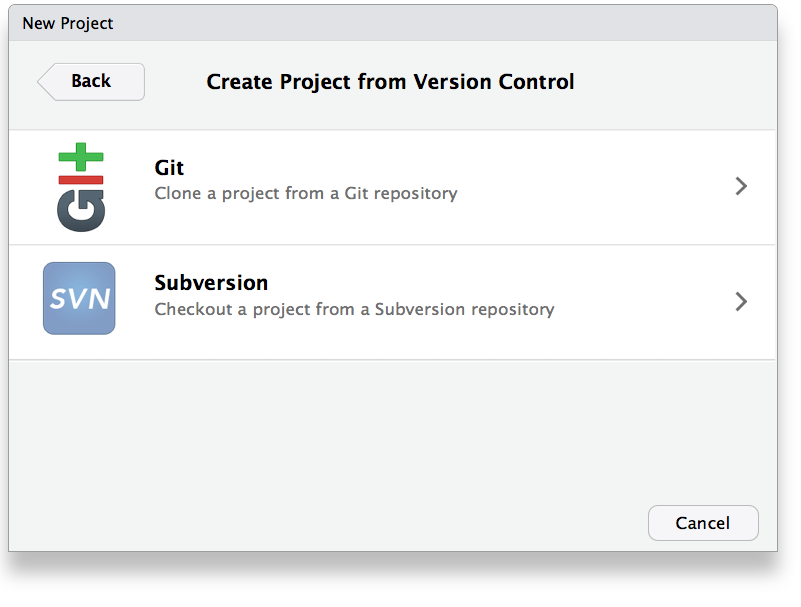
- When you choose “Git” you will reach to the “Clone Git Repository” window:
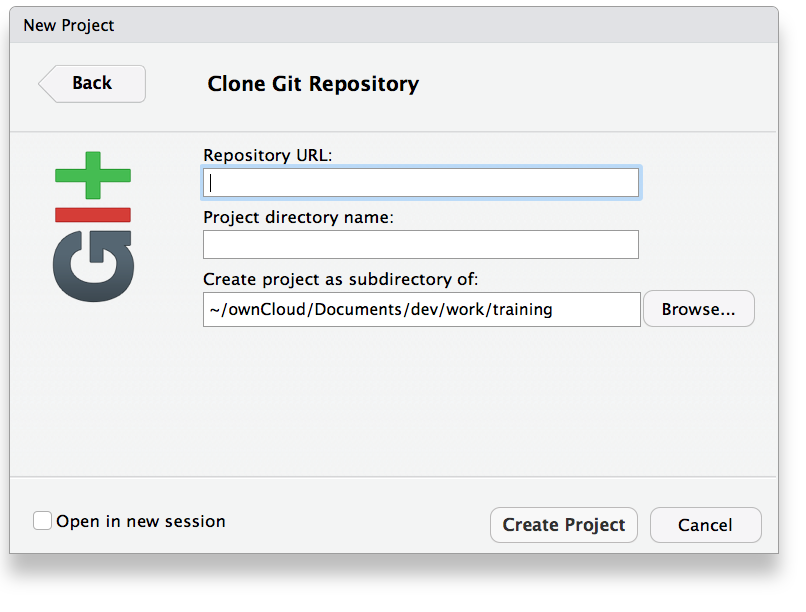
Together with the already familiar fields “Project directory name” and “Create project as subdirectory of:”, now there is a field “Repository URL:” where you need to paste the GitHub link of a repository.
- Use this link to visit the GitHub repository that we will use for our project. Find the button “Clone or download” and click it to find the repository URL:

- Copy the URL and paste it in the “Repository URL:” field of the “Clone Git Repository” window:

As you can see, when you paste the repository URL, the field “Project directory name” gets automatically filled in with the repository name proj-repr-R.
Note
Compare this with the normal Git behavior outside RStudio?
The take-home message
- Git is a popular version control software that can be used in virtually all research areas for:
- keeping track of data, documents, and tools
- easy collaborative work on projects
- easy sharing
- RStudio has functionality that allows us to work with Git repositories in well organized and reproducible manner:
- we can easily initialize Git repositories in existing project directories
- we can create new repositories from scratch
- we can checkout repositories from GitHub directly into RStudio projects.